



- What Is Right Click and Why It Matters
- How Laptop Right Click Differs From a Mouse
- How to Right Click on a Touchpad (Most Common Methods)
- Bottom-Right Corner Click
- How to Enable Right Click on Touchpad Settings
- How to Right Click Without a Mouse Using the Keyboard
- Using Accessibility Features for Right Click
- Right Click on Laptops With No Touchpad Buttons
- How to Right Click on a Laptop Using External Devices
- Common Problems and Easy Fixes
- When Right Click Options Look Different
- Advanced Tips for Power Users
- Why Learning Right Click Matters
- Conclusion
- Recommended For You
Using a laptop feels natural once you know its basic controls. One feature many users struggle with at first is the right-click function. Unlike desktop computers, laptops often lack a visible right mouse button. This can confuse beginners and even frustrate experienced users when switching devices.
This complete guide explains how to right click on a laptop using every reliable method available. It covers touchpads, keyboards, and system settings on Windows and macOS. Each method works without extra tools, and most take only seconds to learn.
What Is Right Click and Why It Matters
Right click opens a context menu. This menu shows options related to what you select. It may include actions like copy, paste, rename, delete, or settings.
Without right click, many tasks take longer. File management becomes harder. Advanced options stay hidden. Learning this function improves speed and control on any laptop.
How Laptop Right Click Differs From a Mouse
A traditional mouse has two clear buttons. Laptops rely on touchpads or alternative inputs. Some touchpads include physical buttons. Others use gestures instead.
Modern laptops focus on clean design. Because of that, manufacturers removed visible right-click buttons. The function still exists, but users must activate it differently.
How to Right Click on a Touchpad (Most Common Methods)
Touchpads support several gestures. These gestures work across most brands, including Lenovo, HP, Dell, and Apple.
Two-Finger Tap
This is the most widely supported method.
How it works:
- Place two fingers on the touchpad.
- Tap once, lightly.
The context menu appears instantly.
This method works on:
- Windows laptops
- macOS MacBooks
- Most external trackpads
If it does not work, touchpad settings may be disabled.
This method remains the most popular for right clicking on a touchpad.
Bottom-Right Corner Click
Some touchpads divide the surface into zones.
Steps:
- Press down on the bottom-right corner of the touchpad.
- Release to open the menu.
Dedicated Touchpad Buttons
Some laptops include physical buttons below the touchpad.
- Left button = left click
- Right button = right click
Pressing the right button opens the context menu. This design is less common now but still exists.
How to Enable Right Click on Touchpad Settings
If gestures fail, settings may be off. Enabling them takes a few steps.
On Windows Laptops
- Open Settings
- Go to Bluetooth & Devices
- Select Touchpad
- Enable Two-finger tap for right-click
Some systems list advanced options. Enable all tap gestures for best results.
On macOS (MacBook)
- Open System Settings
- Choose Trackpad
- Select Secondary click
- Pick Click with two fingers
Changes apply instantly.
How to Right Click Without a Mouse Using the Keyboard
Sometimes the touchpad fails. A keyboard can save the day. This method helps when hardware stops responding.
Context Menu Key (Windows)
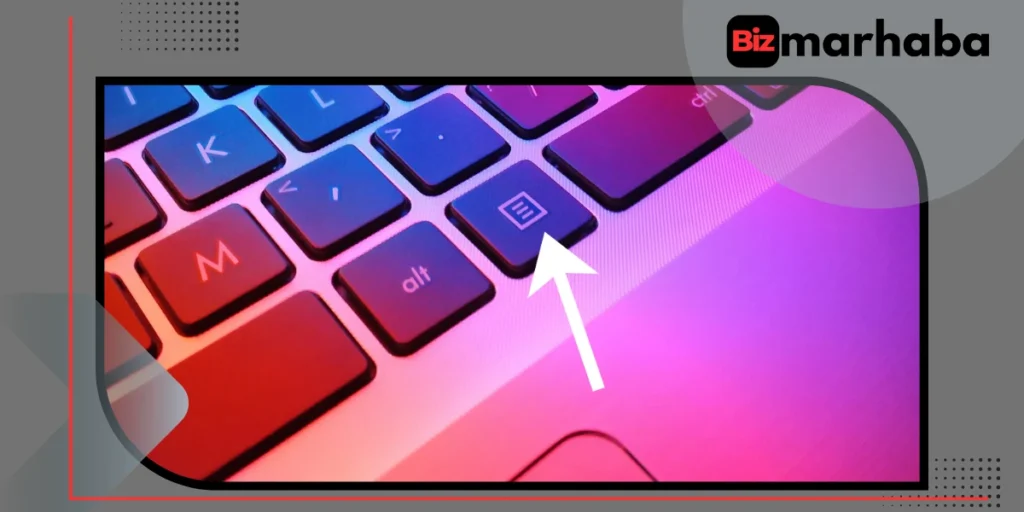
Many Windows keyboards include a context menu key. It sits near the right Alt key.
Steps:
- Select an item using arrow keys.
- Press the context menu key.
The right-click menu opens immediately.
This is a reliable keyboard shortcut for right click on Windows.
Shift + F10 (Windows)
This shortcut works on almost every Windows laptop.
How it works:
- Select a file or item.
- Press Shift + F10.
The context menu appears.
This keyboard shortcut helps users who need to right click without a mouse, especially during errors or startup issues.
Control + Click (macOS)
MacBooks do not use Shift + F10.
Steps:
- Hold the Control key.
- Click once on the item.
This opens the same menu as a right click.
Using Accessibility Features for Right Click
Accessibility tools offer advanced control. These tools help users with mobility issues or broken hardware.
Mouse Keys (Windows)
Mouse Keys lets the keyboard move the cursor.
Steps:
- Open Settings
- Go to Accessibility
- Select Mouse
- Turn on Mouse Keys
You can assign left and right click actions using number keys.
Assistive Touch (macOS)
MacBooks offer Assistive Touch for trackpad customization.
You can assign right click to:
- Corner taps
- Force clicks
- Custom gestures
This method benefits power users who want precision.
Right Click on Laptops With No Touchpad Buttons
Many modern laptops removed physical buttons. Right click still works.
Best solutions:
- Two-finger tap
- Bottom-right click
- Keyboard shortcuts
If none work, touchpad drivers may need updates.
How to Right Click on a Laptop Using External Devices
External devices provide extra flexibility.
USB Mouse
Plugging in a mouse gives instant right-click support. No setup required.
External Trackpad
External trackpads support two-finger gestures. They often feel smoother than built-in touchpads.
Common Problems and Easy Fixes
Right Click Not Working
Possible reasons include:
- Disabled touchpad gestures
- Outdated drivers
- Software conflicts
Fixes:
- Restart the laptop
- Update touchpad drivers
- Check settings
Touchpad Too Sensitive
Accidental right clicks happen often.
Solution:
- Reduce touchpad sensitivity
- Adjust tap pressure settings
When Right Click Options Look Different
Right-click menus differ between systems.
- Windows shows file actions and system tools.
- macOS shows app-specific options.
- Browsers add custom menus.
This difference is normal. The function still works the same way.
Advanced Tips for Power Users
- Customize gestures for faster workflow.
- Use keyboard shortcuts when editing text.
- Combine right click with drag actions.
- Learn app-specific menus.
These tricks save time during daily tasks.
Why Learning Right Click Matters
Right click improves productivity. It unlocks hidden options. It reduces the need for menus and extra clicks.
Being familiar with using right click on a laptop makes any system easier to navigate. It also helps when switching between devices.
Conclusion
Every laptop supports right click. The method just varies. Touchpads use gestures. Keyboards offer shortcuts. Accessibility tools provide backups.
Once learned, the action becomes automatic. Whether you use Windows or macOS, these methods work consistently.
If you ever forget, return to this guide. With practice, right click becomes second nature and boosts your overall laptop experience.