



- What a Chromebook is — and how it differs from a laptop
- Performance and software: use case matters
- Battery life and size matter
- Price
- Security and maintenance
- Offline and storage realities
- Gaming and creative work
- Manageability and education use
- Pros and cons of Chromebook and laptop
- How to decide, realistically
- Conclusion
- Recommended For You
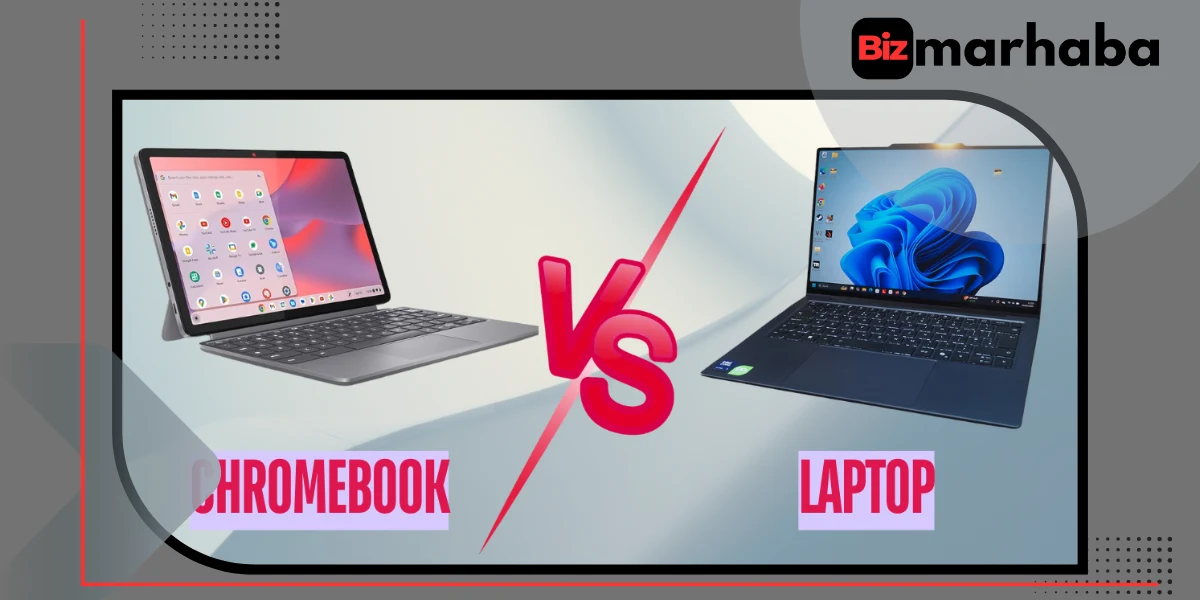
Every buying decision starts the same way. You stare at two options, both promising to “do everything,” and you ask yourself a question that sounds simple but never is: what am I really going to use this thing for? That’s the whole game here. This breakdown looks at the difference between Chromebook and laptop choices, where each actually works well, and the pros and cons of Chromebook vs laptop without pretending there’s a perfect answer.
What a Chromebook is — and how it differs from a laptop
A Chromebook runs Chrome OS. That’s Google’s lightweight system, built around the Chrome browser and cloud tools. It boots fast. Updates quietly. Most work happens online or through apps instead of heavy software installed on the machine itself.
Laptops, the traditional kind, usually run Windows or macOS. That’s where you get full desktop programs, deeper system access, and more hardware variety. More freedom. More power. Also more things that can go wrong.
Strip it down and the chromebook vs laptop debate looks like this: Chromebooks chase simplicity and speed. Laptops chase flexibility and raw capability. Everything else branches out from there.
Performance and software: use case matters
If your day is browsing, email, documents, video calls, streaming—Chromebooks feel quick. They’re supposed to. Web apps, Android apps, even some Linux tools now; all light, all efficient. For students, remote workers, and anyone living in Google Docs, it just works.
But once you step outside that lane, things change. Windows and macOS laptops run full desktop software. Adobe apps. Engineering tools. Development environments. Games that actually need graphics power. If you edit video, render 3D scenes, or rely on niche professional software, a traditional laptop isn’t optional. It’s necessary.
Battery life and size matter
Here’s where Chromebooks quietly win people over. Battery life is usually excellent. The hardware doesn’t have to work as hard, so it lasts longer. Designs stay thin. Light. Easy to toss into a bag and forget about.
Laptops are all over the place. Some ultrabooks compete just fine. Others—gaming rigs, mobile workstations—are heavy and thirsty. They earn that weight with power. Whether that trade-off is worth it depends entirely on what you value more: endurance or muscle.
Price
Chromebooks are cheaper. Not always dirt cheap, but cheaper for what you get. Lower-power components, web-first design, and education-focused pricing keep costs down.
Laptops range from budget machines to absurdly expensive monsters with high-end CPUs and GPUs. That flexibility is great, unless you only needed something simple in the first place. If basic productivity is the goal, Chromebooks usually win the value argument.
Security and maintenance
This is one of those topics people ignore until something breaks. Chromebooks handle updates automatically. Security is baked in. Tabs are sandboxed. The system verifies itself at boot. You don’t babysit it.
Laptops can be secure too. But they ask more from you. Antivirus tools. Manual updates. Smarter downloading habits. If you like control, that’s fine. If you want low effort and fewer worries, Chromebooks have the edge.
Offline and storage realities
Chromebooks assume you’re online. Cloud storage is central. Files sync. Apps expect a connection. Some offline support exists—documents, emails, even certain apps—but it’s not the main strength.
Laptops feel safer when you’re offline for long stretches. Larger internal storage. External drives. Local software that doesn’t care whether Wi-Fi is around. If your work happens far from the cloud, that difference between chromebook and laptop suddenly matters a lot.
Gaming and creative work
Casual gaming works on Chromebooks. Android games. Cloud streaming. It’s fine for what it is.
Serious gaming and creative work live elsewhere. Dedicated GPUs. Desktop-class apps. Full creative suites. That’s laptop territory, especially on Windows. Designers, editors, and gamers know this already. The hardware requirements don’t bend just because a device is cheaper.
Manageability and education use
Schools love Chromebooks. There’s a reason. Devices are easy to deploy, easy to manage, easy to lock down. IT teams can control everything centrally. Updates roll out without drama.
Laptops offer more freedom but need more oversight. In large environments, that adds cost and complexity. If you’re managing hundreds or thousands of devices, Chromebooks simplify life.
Pros and cons of Chromebook and laptop
Chromebooks are affordable, fast to start, and easy to live with. Battery life is strong. Security runs quietly in the background. They fit web-based workflows naturally.
But they struggle with native desktop software. Some Android apps feel awkward on large screens. Heavy offline work can be frustrating. Internet access still matters more than people admit.
Laptops, on the other hand, run almost everything. Games, professional apps, specialized tools. Hardware choices are wide. Storage options are generous.
They cost more once performance climbs. Maintenance is real. Battery life varies wildly. Power always comes with trade-offs.
That’s the pros and cons of Chromebook vs laptop, stripped down.
How to decide, realistically
Ask yourself three things.
- Do you rely on desktop-only software? If yes, laptop. No debate.
- Do you care most about price, battery life, and low maintenance? Chromebook probably fits.
- Do you need local power for gaming, development, or creative work? Laptop again.
Answer honestly and the choice gets clearer than any spec sheet ever will.
Conclusion
Chromebooks are excellent tools when used as intended. Web-first. Lightweight. Simple. For students, casual users, and organizations that value control and cost, they make sense.
Laptops are still the workhorses. When flexibility, performance, and software compatibility matter, they’re the default for a reason.
Match the tool to the job. Everything else is noise.